Quantum Byte Restoration
The restore process is nearly identical across our devices, and requires a freshly erased and formatted USB drive. The only differences are the files used to restore and the format and name of your USB drive. Please take note of these.
Please download the appropriate archive for your device:
*NOTE* WIN8.1 AND WIN10 RESTORES ARE NOT INTERCHANGEABLE DUE TO EMBEDDED WINDOWS KEY
Quantum Access Restore Files Win8.1
New build Quantum Access & Quantum Access LAN Restore Files Win10
File System: FAT32
Volume Label: WINPE
**QUANTUM ACCESS REQUIRES A USB HUB OR microUSB to USB adapter**
*NOTE* WIN8.1 AND WIN10 RESTORES ARE NOT INTERCHANGEABLE DUE TO EMBEDDED WINDOWS KEY
Quantum Byte Windows 8.1 Restore Files
New build Quantum Byte Restore Files Win10
File System: FAT32
Volume Label: WINPE
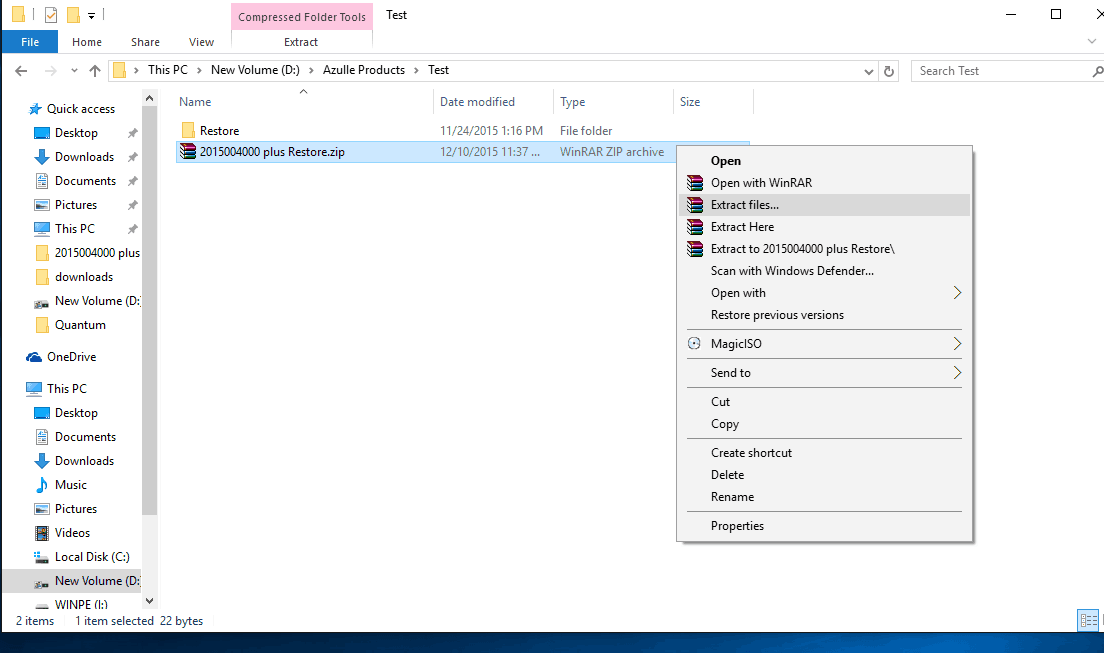
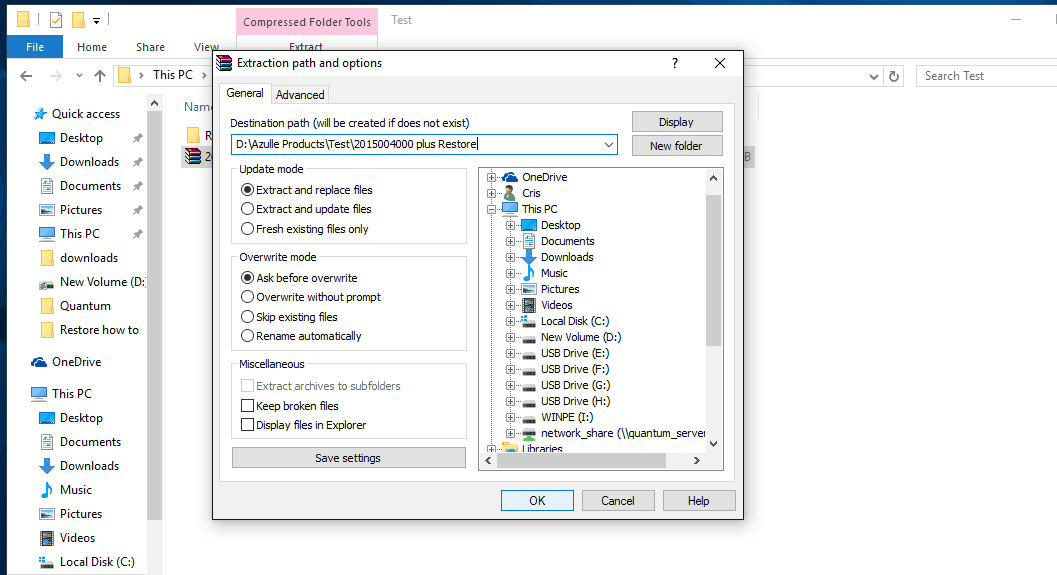
Next, extract the contents of the archive file you downloaded.
Insert an 8GB USB drive that doesn’t contain any important data. Formatting the drive will erase everything on it.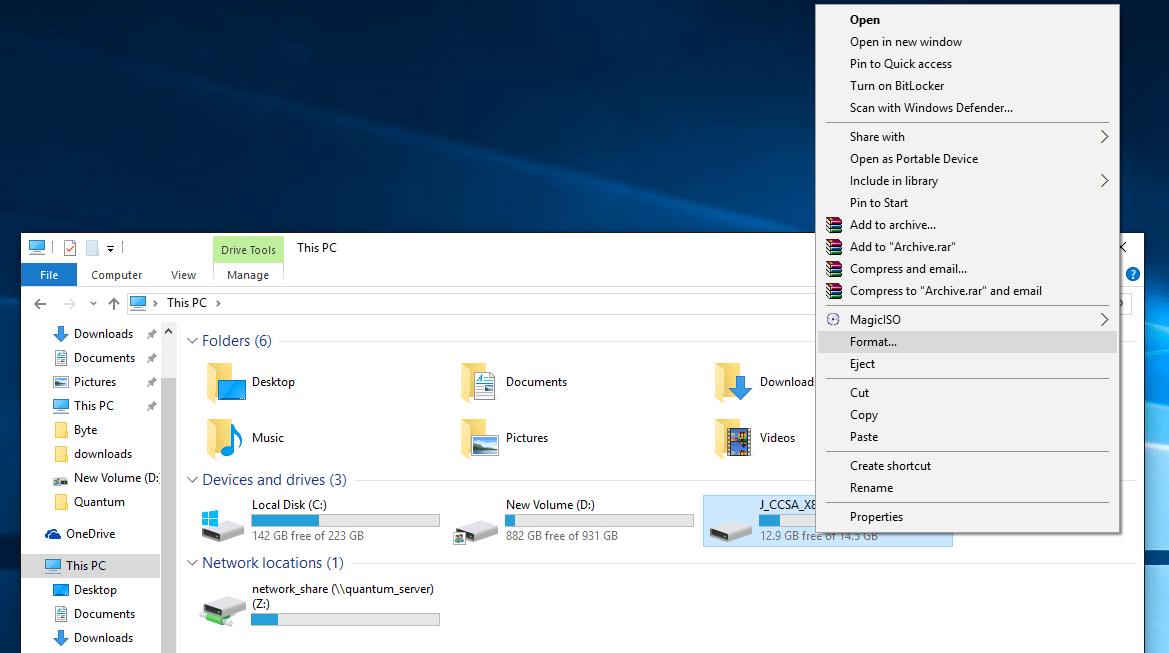
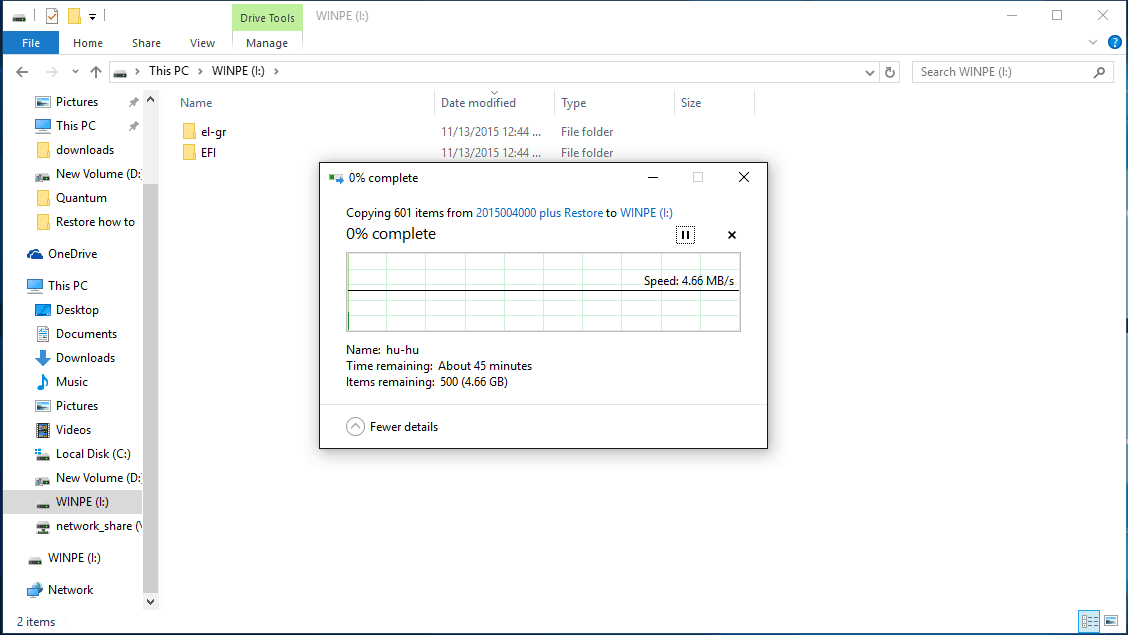
Open this PC, right click on the (D:\) drive (your USB drive), and select format. Select either FAT32 or NTFS as noted for your device above. After the process is complete, name the drive “WINPE”, and then drag and drop the extracted restore files onto it.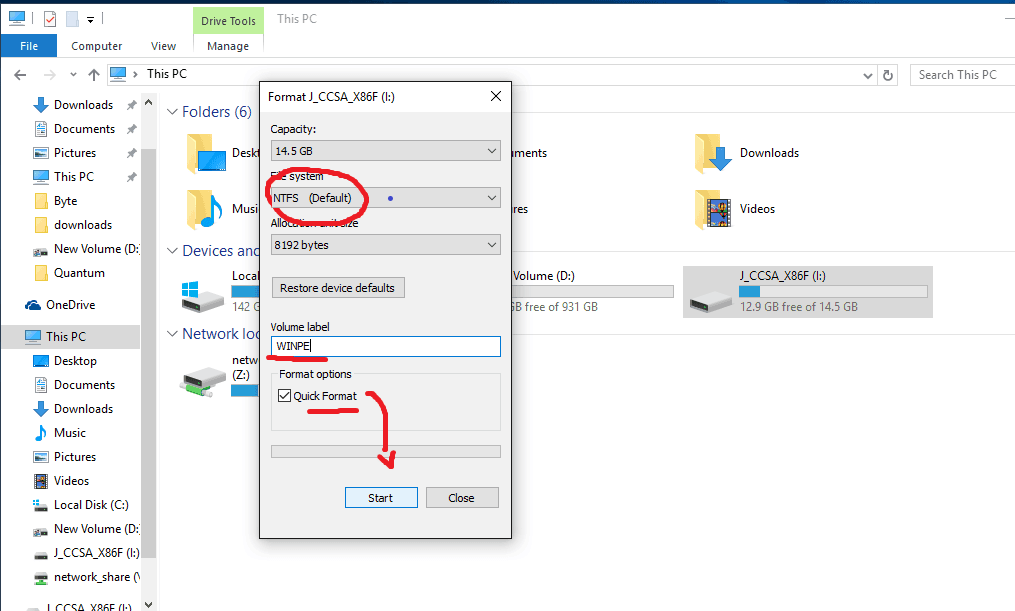
===================================================================================================================
EXAMPLE
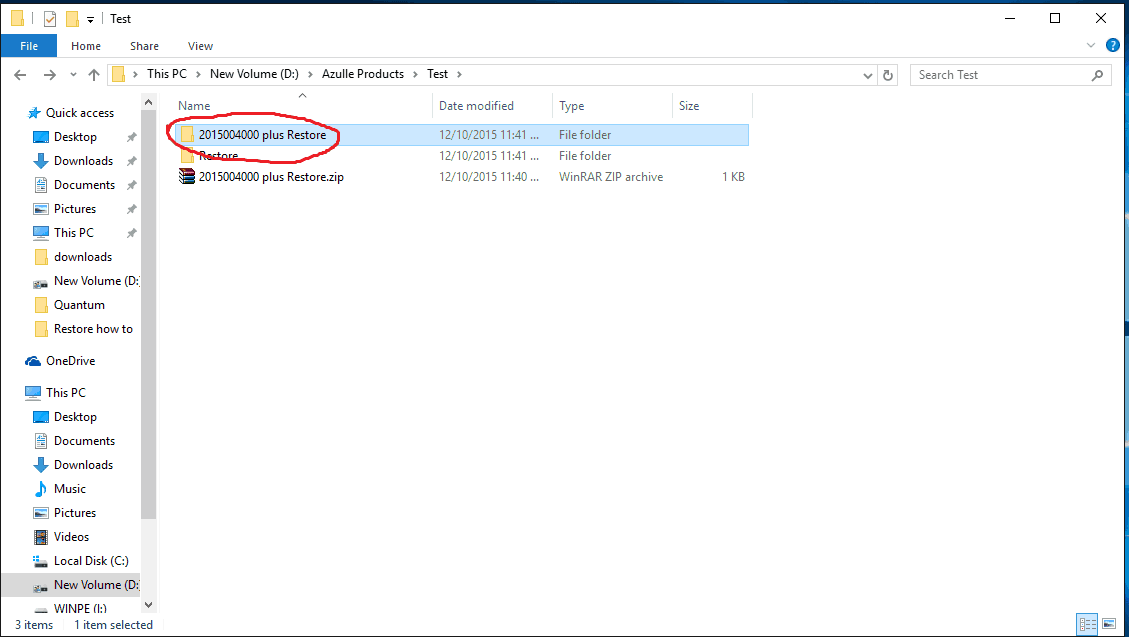
Downloads/exampleRestoreFile.zip (Extract here will result in creating a exampleRestoreFile Folder)
Downloads/exampleRestoreFile/ (move into the directories till you reach bootmgr/bootmgr.efi/bootex.log file)
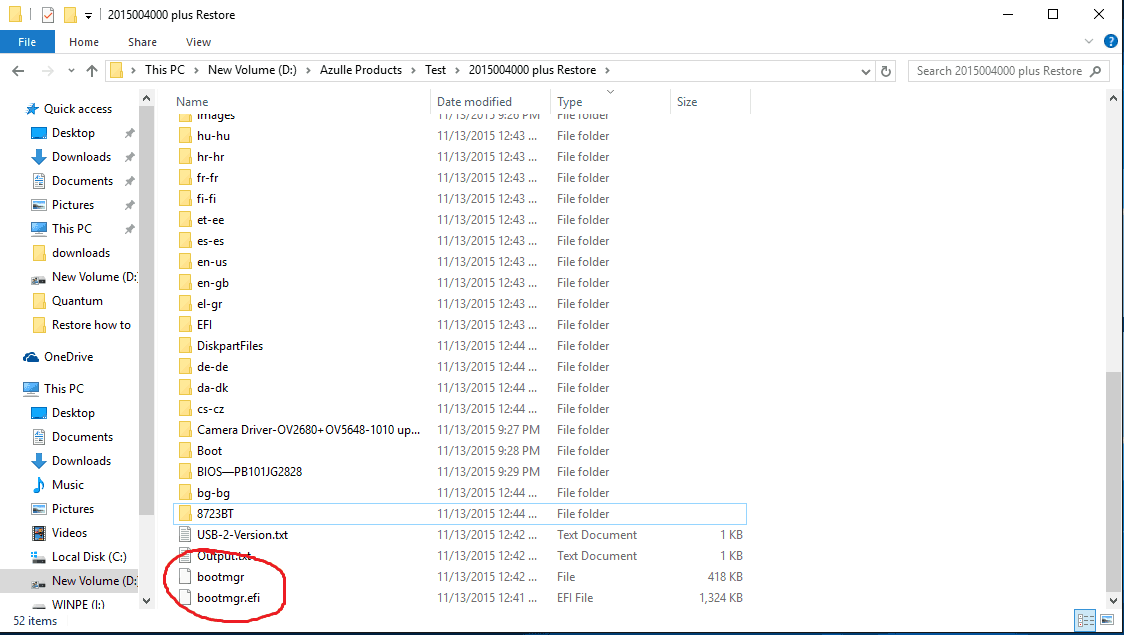
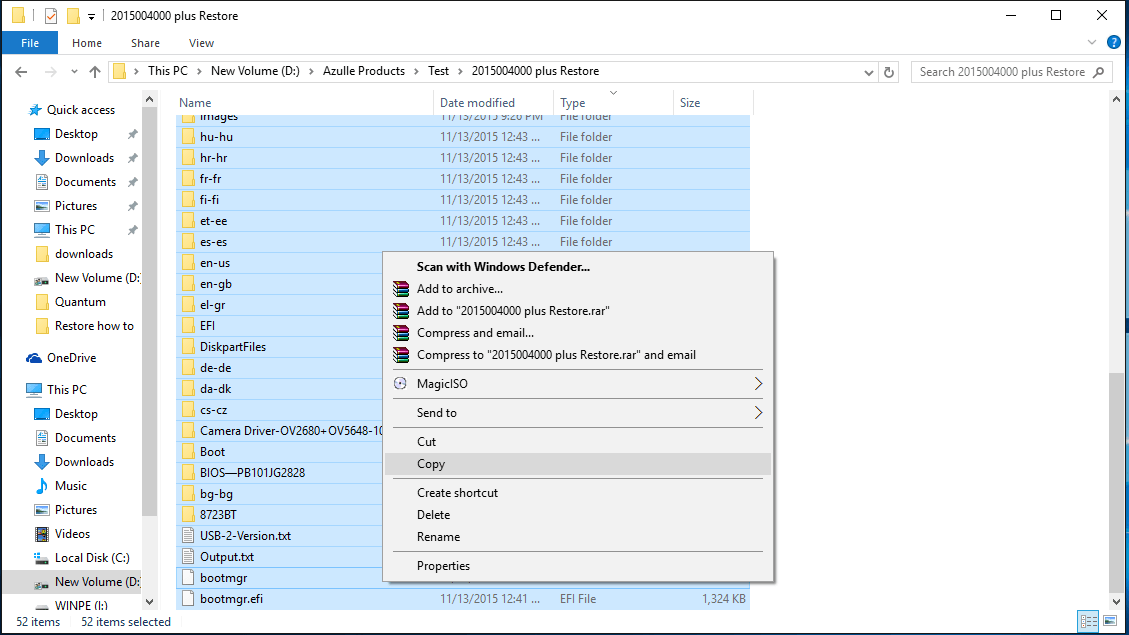
Copy the entire directory of above /Downloads/exampleRestoreFile and move the content into D:\
Now D:\ will have all the content, including folders and bootmgr/bootmgr.efi/bootex.log
===================================================================================================================
Next, reboot the device while the USB drive is connected. Press F7 repeatedly as the device boots. This will launch the boot menu. Select your USB drive.
Should F7 not work (dependent on BIOS revision), Press DEL during boot to reach BIOS. Move to the furthest most right tab (SAVE AND EXIT), locate “BOOT OVERRIDE” and select the appropriate boot device.
After the process is complete, your device will reboot as if it is new.
Video: https://youtu.be/LJXGXiBpsVs